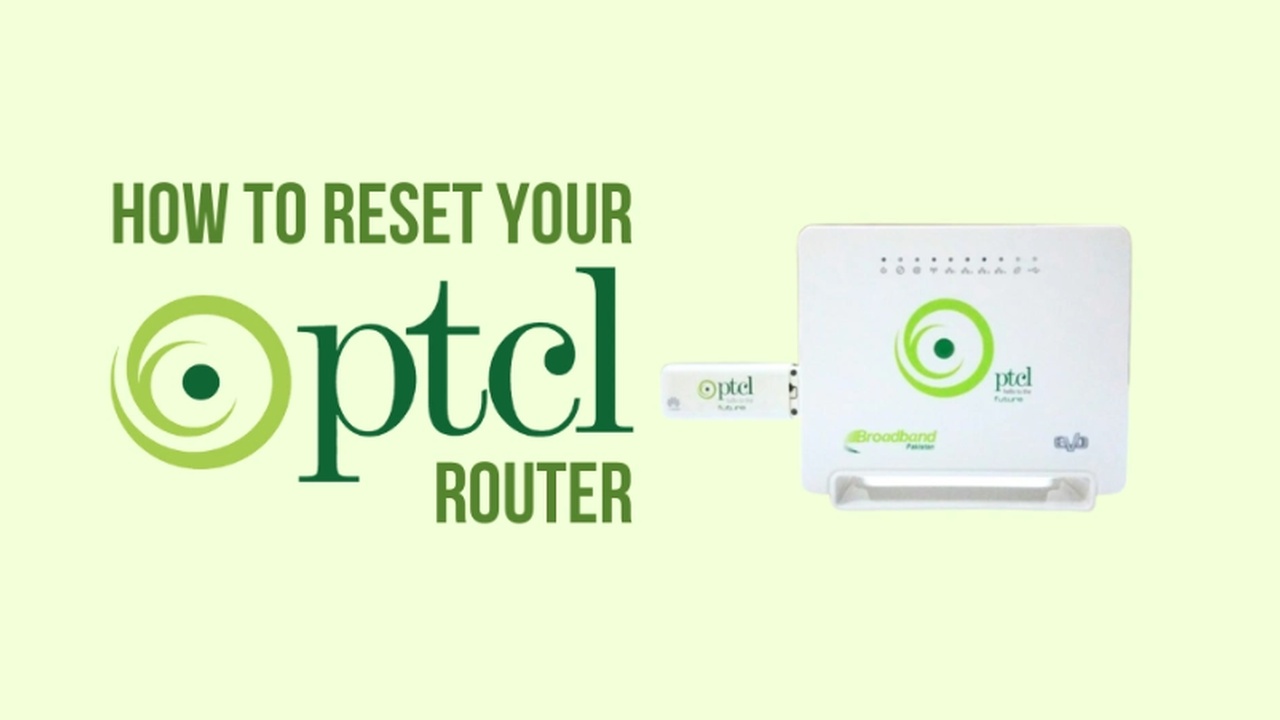
Learning how to reset PTCL router settings is the fastest fix for most internet problems. Moreover, a simple reset often solves slow speeds, drops, and login issues. In this post, you will learn every reset method, step by step. Furthermore, this guide covers login, reconfiguration, common faults, and when to call for help.
To begin, resetting is one of the easiest home fixes. Specifically, it clears small glitches that slow your connection. As a result, your internet often works smoothly again. Therefore, knowing how to reset PTCL router settings saves you time and stress.
Why Reset Your PTCL Router?
A reset solves many common internet issues. Firstly, it fixes slow or dropping connections. Secondly, it clears small software glitches. Thirdly, it helps when you forget your password. So, it is a handy first step for many problems.
Sometimes the router simply needs a fresh start. Specifically, routers run for weeks without a break. Moreover, this can cause them to slow down. Therefore, a quick reset refreshes everything. Consequently, your speed often improves right away.
However, not every problem needs a full reset. Specifically, some issues come from the PTCL line itself. Moreover, a reset cannot fix a broken line. Therefore, try a reset first, then call support. Indeed, it solves most home-side problems.
Soft Reset vs Hard Reset
There are two main ways to reset PTCL router settings. Basically, one is gentle and one is complete. So, knowing the difference is important. The table below compares them.
Aspect
Soft Reset (Reboot)
Hard Reset (Factory)
What it does
Restarts the router
Erases all settings
Settings kept?
Yes
No
Best for
Minor glitches, slow net
Forgotten password, big issues
Effort
Very easy
Needs reconfiguration
As the table shows, a soft reset is safe and simple. Meanwhile, a hard reset wipes everything clean. Therefore, always try a soft reset first. Consequently, you avoid extra setup work unless truly needed.
Before You Start
A little preparation makes the process smooth. Basically, you need a few things ready first. So, gather them before you begin. Below is what to prepare.
You will need only simple items. Firstly, use a device like a phone or laptop. Secondly, connect it to your PTCL WiFi or a cable. Thirdly, keep your internet username and password handy. Moreover, note them from your PTCL welcome details.
If you do not have these credentials, do not worry. Specifically, you can call the PTCL helpline for them. Moreover, they will share your PPPoE details. Therefore, keep your phone nearby. Consequently, you can finish setup without delay.
Method 1: Reboot (Soft Reset)
The reboot is the easiest method of all. Basically, it simply restarts your router. So, it fixes many small problems fast. Moreover, it keeps all your settings safe.
The steps take under a minute. First, switch off the router’s power button. Then, unplug it from the power socket. Next, wait for about 30 to 60 seconds. Finally, plug it back in and switch it on.
After a short wait, the router restarts fully. Specifically, the lights turn green once it connects. Moreover, your internet usually returns quickly. Therefore, always try this method first. Indeed, it solves most everyday glitches.
Method 2: Reset Through Settings
This method refreshes your connection without a full wipe. Basically, you reconfigure the internet settings inside the router. So, it fixes login and connection faults. Moreover, it keeps most of your setup intact.
The steps are simple to follow. First, log in to your router’s admin panel. Then, go to the “Advanced Setup” section. Next, open the “WAN” settings. After that, remove the old configuration and add it again. Moreover, re-enter your internet username and password.
Finally, save the settings and let the router reboot. Specifically, this refreshes your connection cleanly. Moreover, it often fixes a red internet light. Therefore, use this method for connection problems. Consequently, your internet should reconnect properly.
Method 3: Hard Reset (Factory Reset)
A hard reset returns the router to factory settings. Basically, it erases everything you have set up. So, use it only as a last resort. Moreover, it helps when you forget the admin password.
The steps are quick but powerful. First, find the small reset button on the back. Then, use a pin or paperclip to press it. Next, hold it for about 10 to 15 seconds. Finally, release it when the lights blink or turn red.
Warning: this method deletes all your settings. Specifically, it erases your WiFi name and password. Moreover, it removes your internet configuration. Therefore, you must set everything up again afterward. Indeed, only use this when nothing else works.
How to Log In to Your PTCL Router
Logging in is needed for several reset steps. Basically, it opens your router’s control panel. So, learning it is very useful. Below are the steps.
The login process is straightforward. First, connect to your PTCL WiFi network. Then, open any web browser on your device. Next, type 192.168.10.1 in the address bar. Moreover, try 192.168.1.1 if the first one fails.
After that, a login box will appear. Specifically, enter “admin” as the username. Moreover, enter “admin” as the password too. Additionally, check the sticker on your router if these fail. Therefore, you can then access all settings.
Reconfigure After a Hard Reset
A hard reset means you must set things up again. Basically, the router forgets your internet details. So, you need to re-enter them. Moreover, this restores your connection.
The reconfiguration steps are clear. First, log in to the router as shown above. Then, open the “WAN” or “Internet” settings. Next, enter your PPPoE username and password. Moreover, these come from your PTCL account details.
If you do not have these details, call for help. Specifically, the PTCL helpline can provide them. Moreover, they guide you through each step. Therefore, keep the helpline number ready. Consequently, your internet will work once saved.
Set Up WiFi Name and Password Again
After a hard reset, your WiFi also needs setup. Basically, the router loses your custom WiFi details. So, you must set a new name and password. Moreover, this secures your connection.
The steps are simple to complete. First, log in to the router’s admin panel. Then, open the “Wireless” section. Next, enter your WiFi name in the SSID field. Moreover, go to “Security” and set a strong password.
Finally, save your changes to apply them. Specifically, the router will reboot briefly. Moreover, your WiFi devices will disconnect for a moment. Therefore, reconnect them using the new password. Indeed, a strong password keeps your WiFi safe.
Common PTCL Router Problems and Fixes
Many router problems have quick, simple fixes. Basically, most do not need a hard reset. So, try the right fix first. The table below lists common issues.
Problem
Likely Fix
Slow or no internet
Reboot the router first
Red internet light
Re-enter PPPoE settings (call 1218)
Forgot admin password
Hard reset the router
Login page won’t open
Check WiFi and the correct IP
DSL light blinking
Line or signal issue — call 1218
As the table shows, each problem has a clear solution. Moreover, a reboot fixes many of them. Therefore, match the fix to your issue. Consequently, you save time and effort.
A few extra checks help with login problems. Specifically, make sure you are connected to the router. Moreover, type the IP without “http://” in front. Additionally, clear your browser cache if needed. Therefore, these small steps fix most login errors.
PTCL Router Models
PTCL uses several different router brands. Basically, the steps are similar across all of them. So, minor differences may exist. The table below shows common models.
Router Brand
Note
Huawei
Very common; standard login steps
ZTE
Similar menus and settings
FiberHome
Used for fiber connections
As the table shows, all models work in a similar way. However, menu names may differ slightly. Therefore, look for similar options if names vary. Moreover, the login IP is usually the same. Consequently, these steps apply to most PTCL routers.
When to Call PTCL Helpline
Sometimes a reset simply is not enough. Basically, some faults lie outside your home. So, calling support becomes necessary. Moreover, the helpline can solve line issues.
A few signs point to a support call. Firstly, a blinking DSL light suggests a line fault. Secondly, a red internet light after reconfiguring needs help. Thirdly, repeated drops may signal a bigger problem. Moreover, missing PPPoE credentials require their help.
Reaching PTCL support is easy. Specifically, you can call the helpline at 1218. Moreover, they can guide you in Urdu too. You can also visit the official site at ptcl.com.pk. Therefore, contact them when a reset does not work. Additionally, you can raise service complaints with the PTA at pta.gov.pk.
Tips to Avoid Router Problems
A few habits keep your router healthy. Basically, good care means fewer resets. So, follow these simple tips. Below are the best ones.
Several habits prevent common issues. Firstly, do not reset the router unless needed. Secondly, note your WiFi and login details safely. Thirdly, place the router in an open, airy spot. Moreover, keep it away from heat and walls.
A little regular care goes a long way. Specifically, reboot the router occasionally to refresh it. Moreover, keep its software updated if possible. Therefore, these habits reduce future problems. Indeed, prevention beats frequent resets.
Managing Your Other Telecom Services
Handling your telecom services gets easier with a few tricks. Basically, small shortcuts save you time and effort. So, learning them is very useful. Moreover, they help across different networks.
For example, mobile users benefit from quick codes. Specifically, checking your balance takes only seconds with the right code. If you also use a Jazz SIM, our how to check Jazz balance guide shows every method. Therefore, these simple tips make daily telecom tasks easier.
Frequently Asked Questions
How do I reset PTCL router settings quickly?
The fastest way is a simple reboot. Specifically, switch off the router and unplug it. Then, wait a minute and plug it back in. Therefore, this fixes most small problems.
What is the difference between soft and hard reset?
A soft reset just restarts the router. Specifically, it keeps all your settings safe. Meanwhile, a hard reset erases everything completely. Therefore, try a soft reset first.
How do I hard reset my PTCL router?
Find the small reset button on the back. Then, press it with a pin for 10 to 15 seconds. Next, release it when the lights blink. However, remember this erases all your settings.
What is the default PTCL router login?
Open 192.168.10.1 or 192.168.1.1 in a browser. Then, enter “admin” as both username and password. Moreover, check the router sticker if these fail. Therefore, you can access the settings easily.
Why is my internet light red after a reset?
A red light usually means the PPPoE details are missing. Specifically, you must re-enter your internet username and password. Moreover, you can get these by calling 1218. Therefore, reconfigure the WAN settings to fix it.
Will resetting delete my WiFi password?
A hard reset will delete your WiFi password. Specifically, it erases your WiFi name too. However, a simple reboot keeps them safe. Therefore, set them up again after a hard reset.
Why won’t the router login page open?
First, check that you are connected to the router. Then, type the IP without “http://” in front. Moreover, clear your browser cache and try again. Therefore, these steps usually fix it.
When should I call the PTCL helpline?
Call 1218 if a reset does not help. Specifically, contact them for line faults or missing credentials. Moreover, a blinking DSL light needs their help. Therefore, they handle problems outside your home.